PDQ.com
PowerShell Scanner
Bringing the most-requested feature back to the cloud. Safely.
Timeline
2024–2025
Role
Lead Designer
Team
2 designers, 1 PM
Overview
I led the end-to-end redesign of PDQ's PowerShell Scanner, the #1 most requested feature for their cloud platform, Connect. This included designing a guided three-step creation workflow, learning PowerShell myself to understand the experience firsthand, running rapid user testing with the Discord community, and building a script library to lower the barrier for newer admins. By the end, the feature shipped to strong customer reception after years of demand, turning a 12-year-old desktop tool into a structured, cloud-native workflow any admin could use.
The Challenge
PowerShell is the go-to language for managing Windows computers. For over 12 years, IT admins used PDQ's PowerShell Scanner to pull device data (battery health, uptime, software compliance, etc.) and use it to automatically control their environment.When PDQ launched Connect the scanner didn't come with it because it required the user to know PowerShell, the scanner could overload servers, and collected data could be returned in any format. We had to solve all three problems before it could ship.
The Solution
I designed a guided three-step workflow: write your script, test it on a single device, then validate and label your output. That single constraint (test before you deploy) solved all three problems at once. It gave newer admins a safe place to learn, prevented runaway scripts from hitting the whole fleet, and turned unpredictable output into data Connect could actually use.
Process
How I Got There
The #1 most requested feature
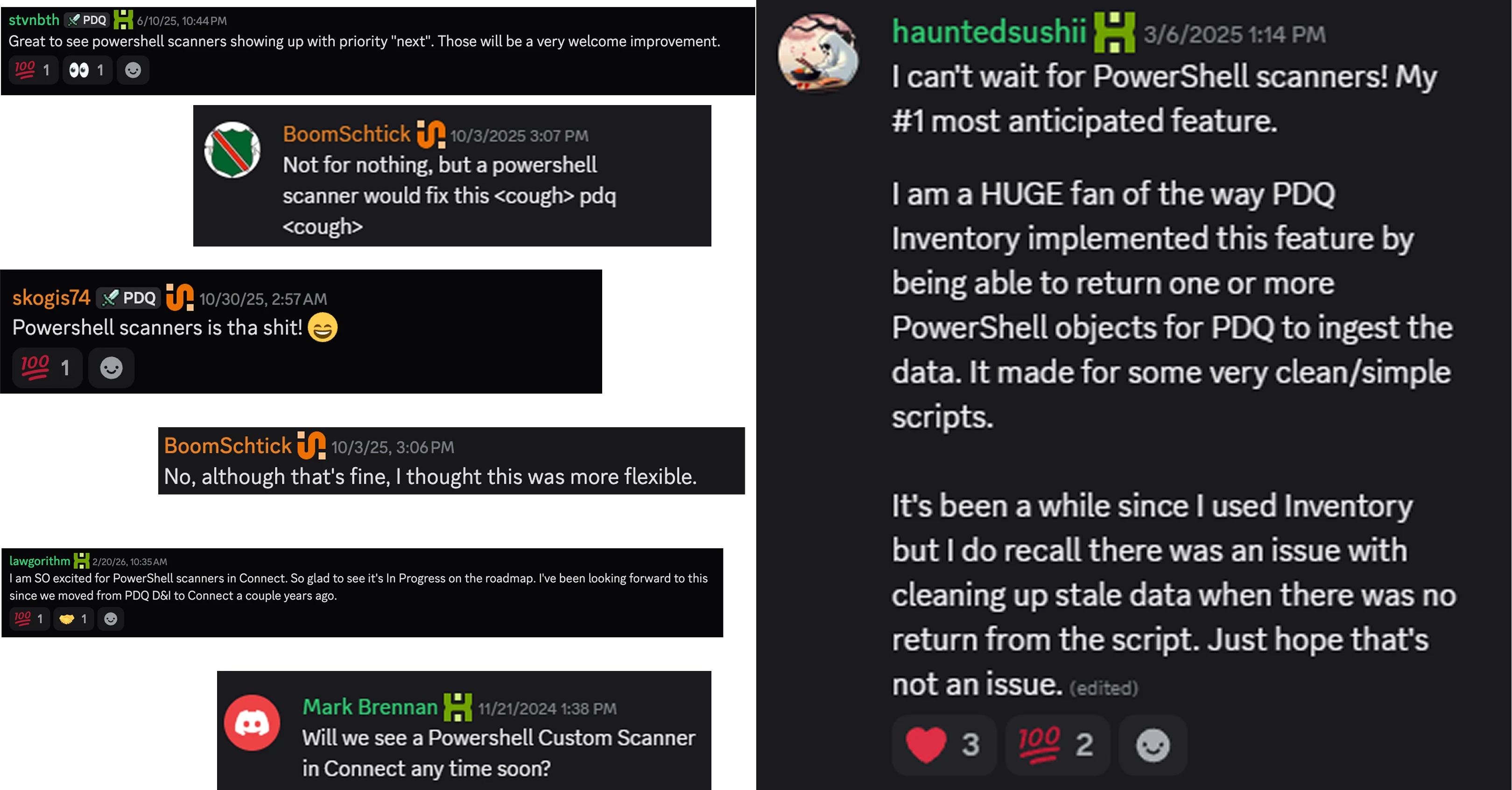
When admins moved from D&I to Connect, they lost access to their PowerShell scripts. Workflows they had built over years suddenly needed workarounds. The frustration showed up everywhere: support tickets, forums, Discord threads. It was the most requested feature for years.
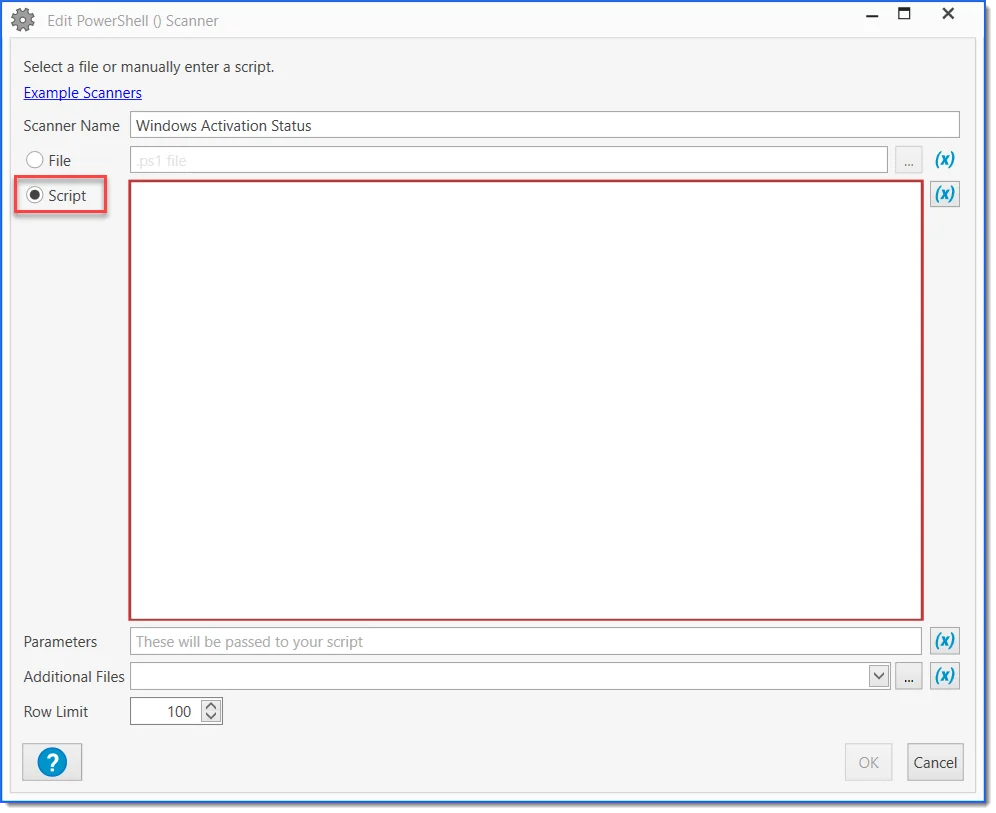
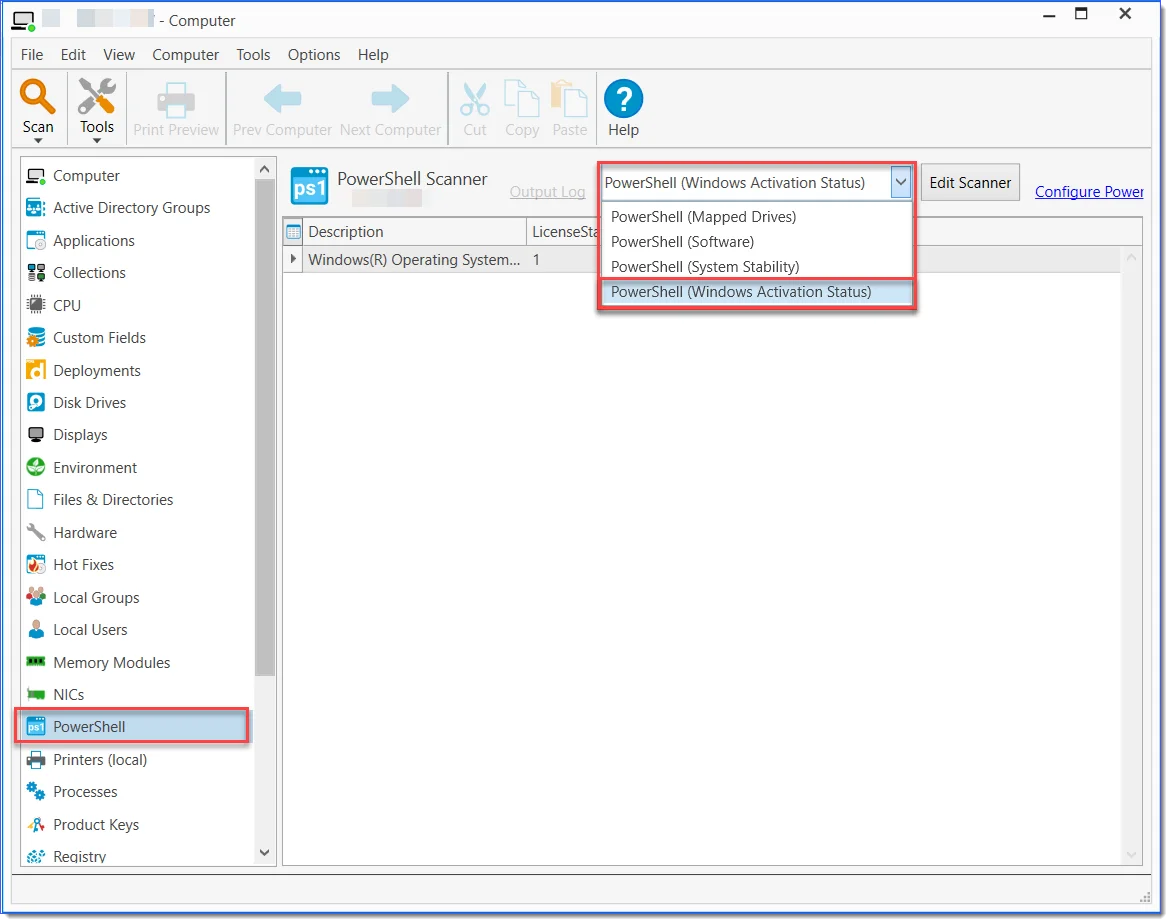
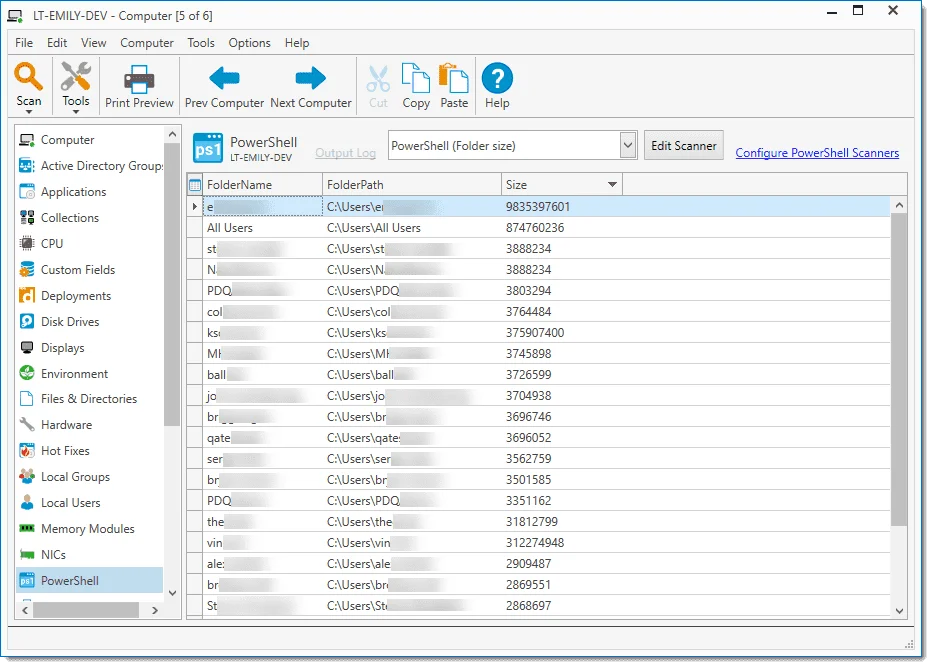
Left behind when we moved to the cloud
This is the original scanner, a Windows desktop dialog that IT admins had used for over a decade. When we first talked about bringing it to Connect, it seemed straightforward. We'd rebuild the UI, match the functionality, and ship it. We had no idea how complex it would turn out to be.
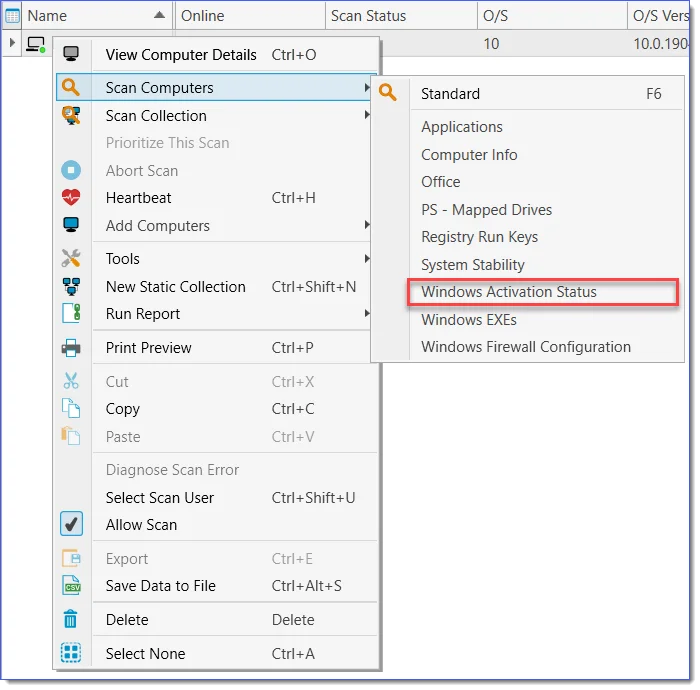
Three problems we had to solve
Our first designs looked like a natural evolution of the original. When we tested early, the feedback was consistent: "This is exactly what we expected." But when we brought those designs to engineering, three problems emerged that changed everything.
- It required PowerShell knowledge, and in Connect, mistakes had real consequences. A bad script could run across an entire fleet with no guardrails.
- Scripts could run unconstrained. One heavy scan across thousands of devices could slow the system for everyone and spike infrastructure costs.
- The output was unpredictable. If data types were assigned incorrectly, users couldn't filter or act on their data, and would likely give up on the scanner entirely.
To make it even more interesting: we had two weeks to solve all of this before engineering needed to start building.
I had to become the user
To design for someone who doesn't know PowerShell, I needed to know it first. So before any mockups, I learned the foundations: how it works, how people use it, and where beginners get stuck. I documented what confused me, what clicked, and where things finally made sense. That turned into a beginner's guide I shared with the team. It shaped every design decision I made after that.
PowerShell: The Ultimate Beginner's Guide
What is PowerShell?
- A command-line tool for controlling and automating your computer
- Commands replace clicking, making them faster, repeatable, and scriptable
4 Types of Commands
- Cmdlets: built-in commands that follow the Verb-Noun pattern (Get-Process, Stop-Service)
- Functions: custom reusable commands you define once and call anytime
- Scripts (.ps1): files containing multiple commands that run in sequence
- Native Commands: standard Windows commands PowerShell can also run (ipconfig, ping, tasklist)
PowerShell Modules
- Modules are toolboxes of pre-built commands for specific domains
- Common modules: Active Directory, Azure (Az), Windows Update (PSWindowsUpdate)
- Types: Manifest (.psd1), Script (.psm1), Binary (.dll), Dynamic, CIM, Resource
Key Concepts Every Admin Needs
- Variables ($name): storage boxes for values you want to reuse
- Pipelines (|): pass the output of one command directly into the next
- Loops (for, foreach, while): repeat actions across multiple items or computers
- Conditionals (if/else): make decisions inside a script based on current state
- Error Handling (try/catch): catch failures gracefully so scripts don't crash mid-run
- Execution Policy: security setting that controls which scripts are allowed to run
- Aliases: shortcuts for common commands (ls = Get-ChildItem, rm = Remove-Item)
Classes & Objects
- Classes let you structure data with properties (data) and methods (actions)
- Useful for storing employee records, device info, or event logs in a consistent format
- Objects help scripts process and organize data more efficiently than plain text
Going straight to the source
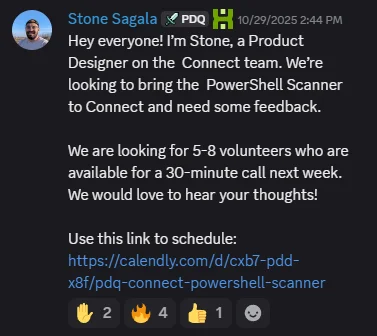
I needed user input, so I went straight PDQ's active Discord server to get in touch with users. Within two weeks, I scheduled over seven calls and since I didn't have prototypes yet, their feedback helped me iterate in between sessions. They were the right people to pressure-test it because they knew the old scanner inside and out, and they weren't shy about telling us when something felt off.
Making PowerShell approachable
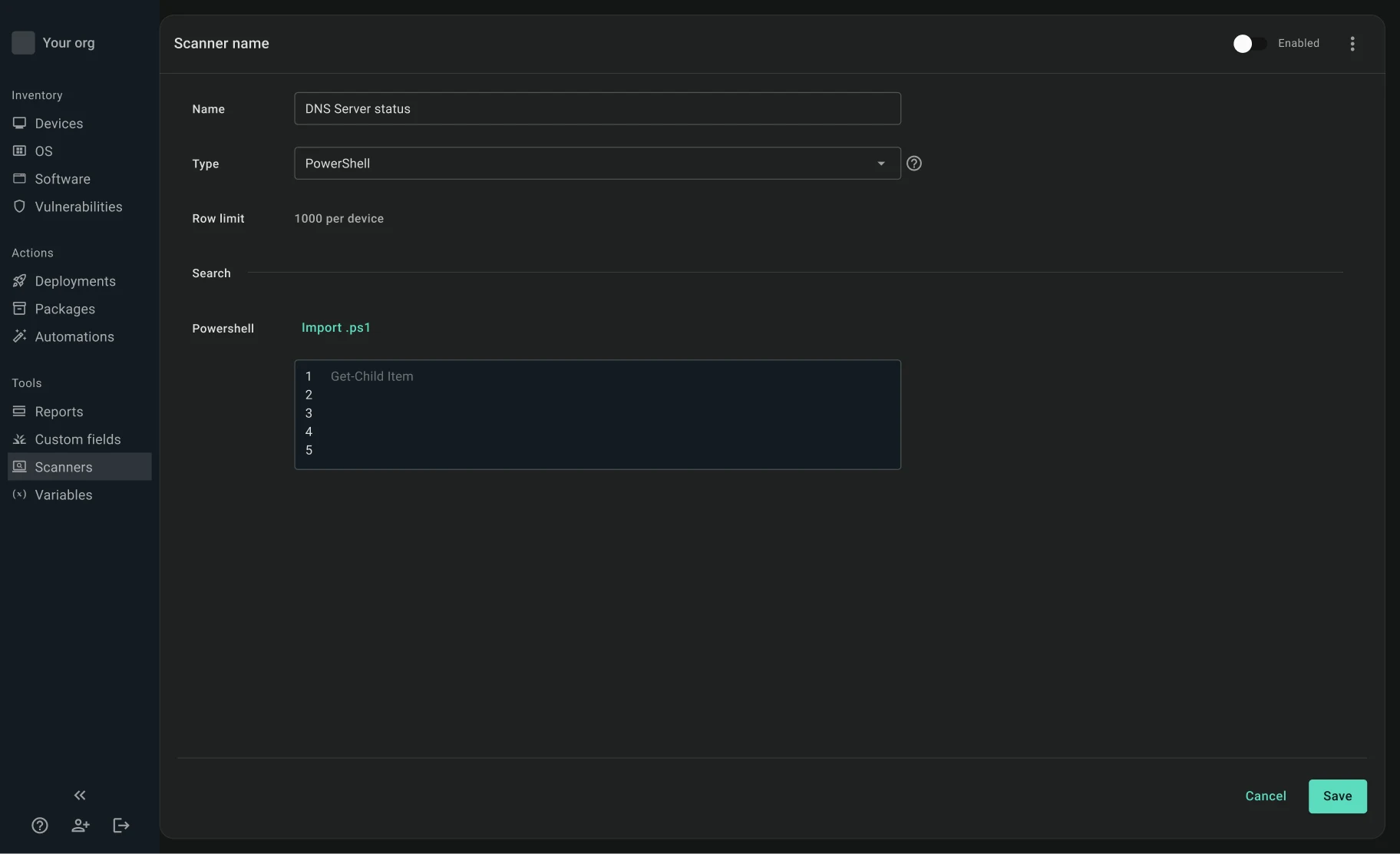
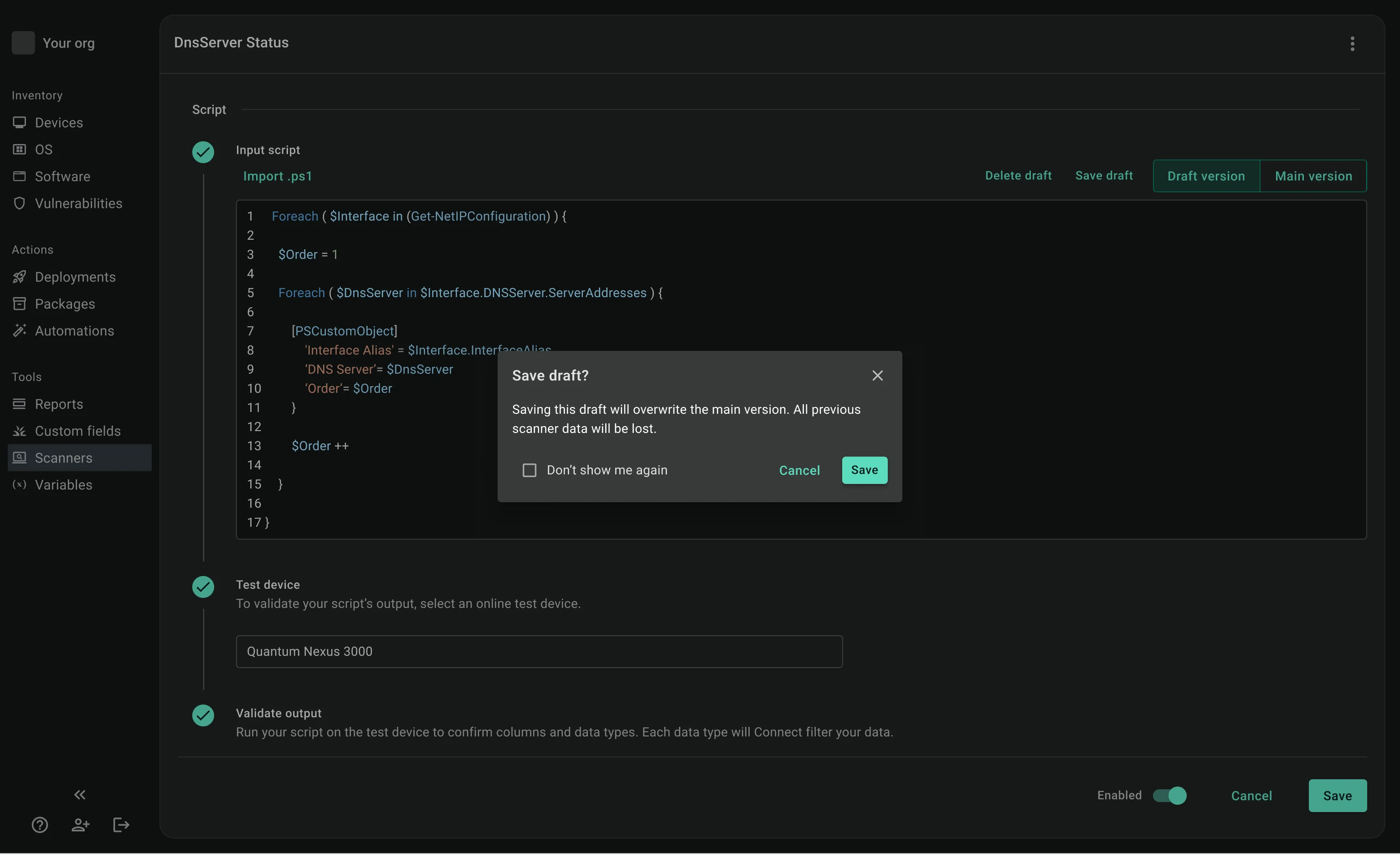
A blank code editor is intimidating if you've never written a script before, so I built two things into the UI to help close the gap.
- Placeholder text inside the editor showing exactly what format the script output needed to be in, so admins had a working example from day one.
- A full code editor instead of a plain input field, with syntax highlighting and real-time error feedback so admins could catch mistakes as they typed, not after testing it on hundreds of devices.
Making sense of infinite output
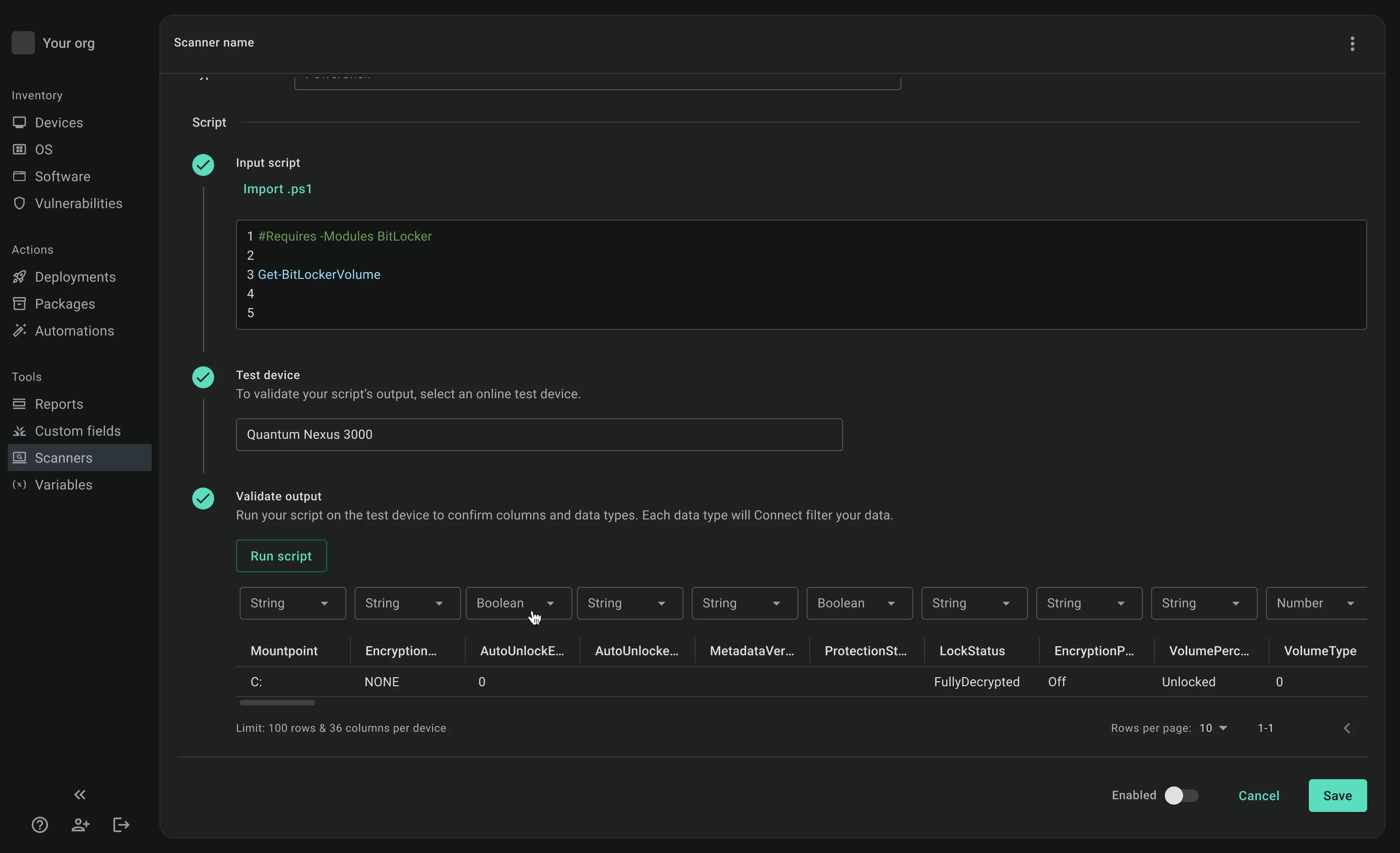
The original scanner output exactly what the user wrote, right or wrong. This was a common complaint since users were spending more time troubleshooting script than managing their devices. To solve this, we forced users to test their scanner on one device and assign data types to each column their script returned. We were worried users would be frustrated at the extra steps, but it became one of the most loved parts of the design, and people said they wished the original scanner had it.
Scanners as a fleet superpower
The 3-step workflow solved the system strain problem too. Scripts don't run on all devices until the user validates the output, which eliminates the risk of a bad script overloading servers. Once validated, scanner data becomes a filter condition for devices and can trigger automations across Connect. For example: check BitLocker status -> group every at-risk device -> deploy a fix -> automate it going forward.
Try the Figma prototype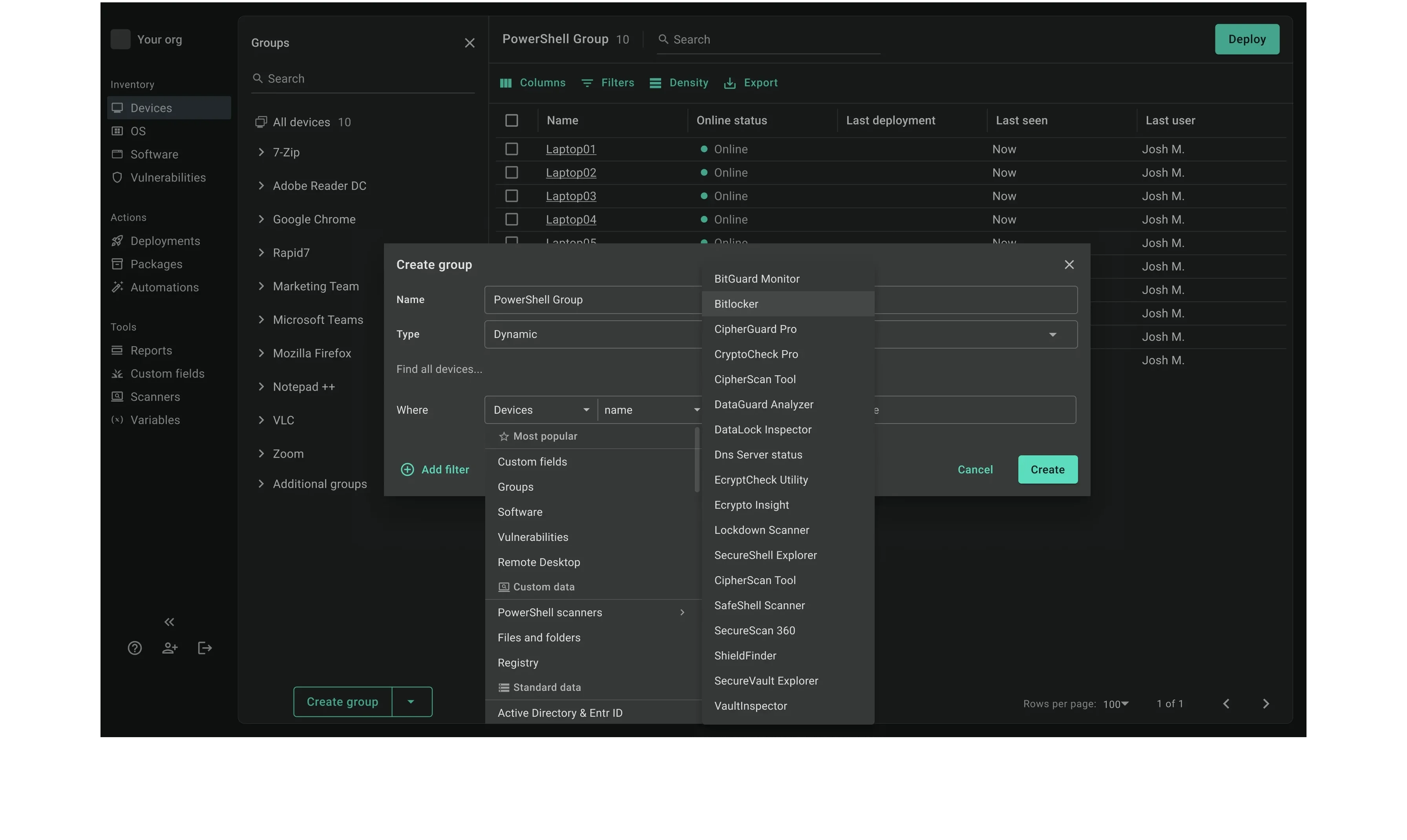
Results
Impact & Outcomes
#1
most requested feature
Delivered after years of demand from users who had relied on it in D&I and lost it when moving to Connect.
2
week design turnaround
Solved three problems blocking engineering and delivered a validated design in two weeks.